
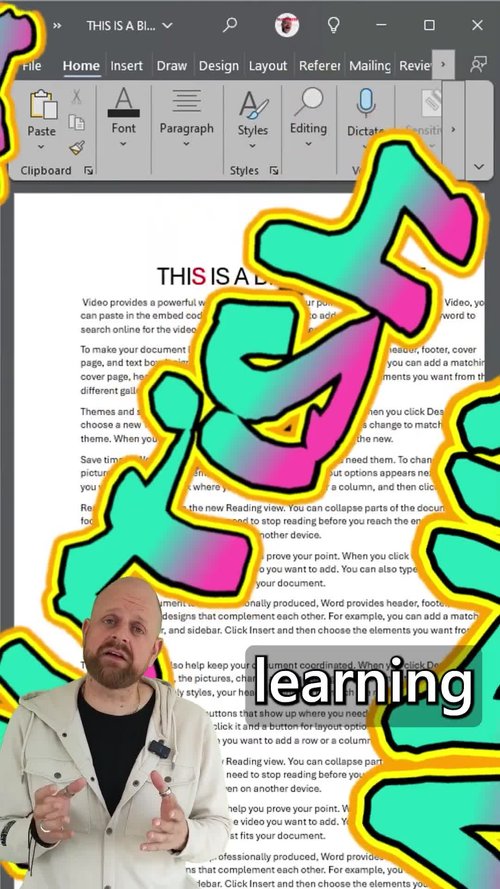
Accessibility Settings
Open Accessibility Settings easily and explore the tools available.

Colour Filters
Using colour filters can help reduce glare, aid concentration and therefore help improve concentration.
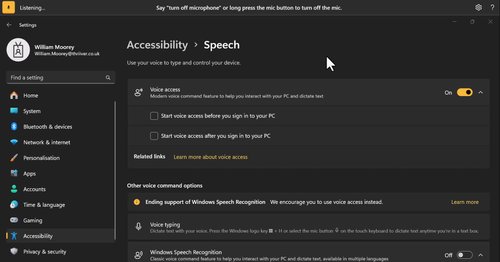
Voice Access
Just by using your voice you can dictate text and command and control your PC.
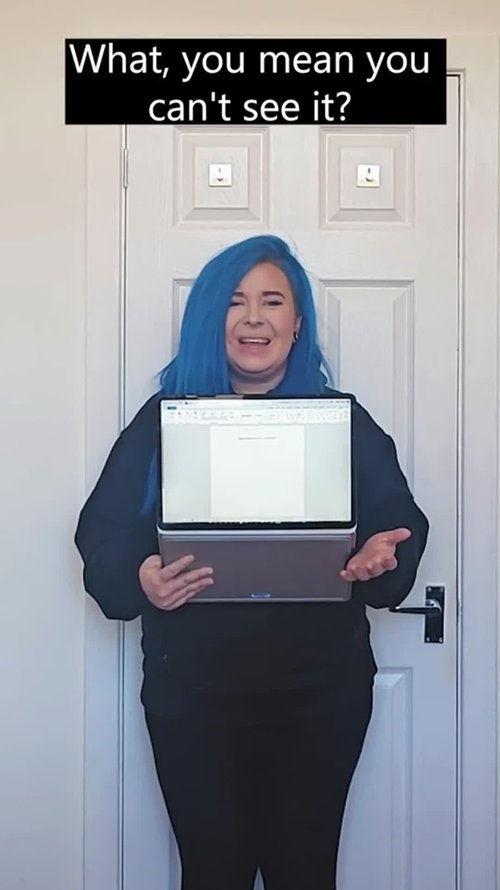
Windows Key + U
Open Accessibility Settings easily from a windows shortcut.
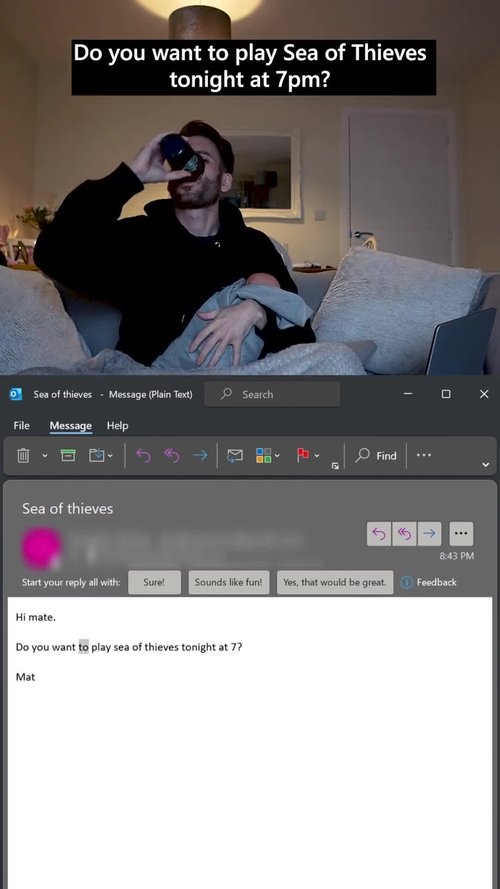
Read Aloud & Dictate
This is a tool that can be used to read Word documents and can help you absorb what’s on the page or prevent you from misreading something important.
Live Captions
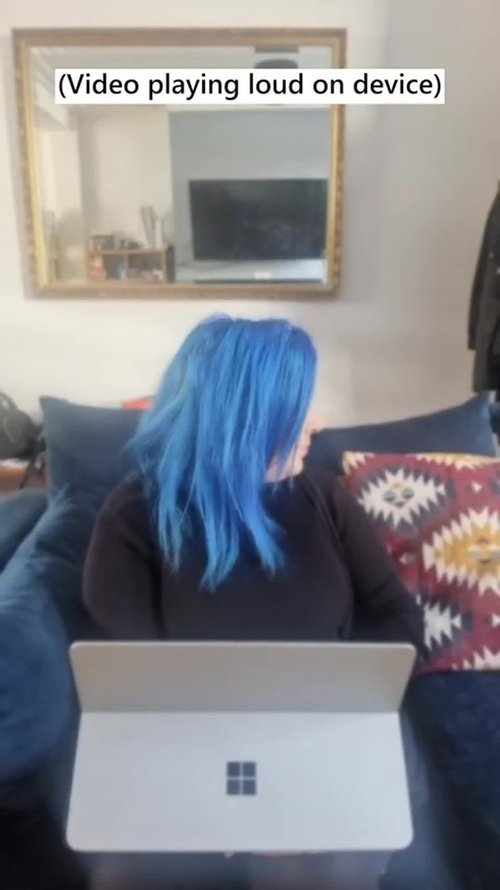
Captions are great for everyone to have switched on in meetings. They can help everyone process what is being said much better and make sure that people don’t miss a few keywords when the internet buffers.
Sticky Keys
The Sticky Keys feature in Windows 11 allows users to press keyboard shortcuts one key at a time instead of simultaneously, making it easier for those with physical disabilities or motor impairments.

Mono Audio
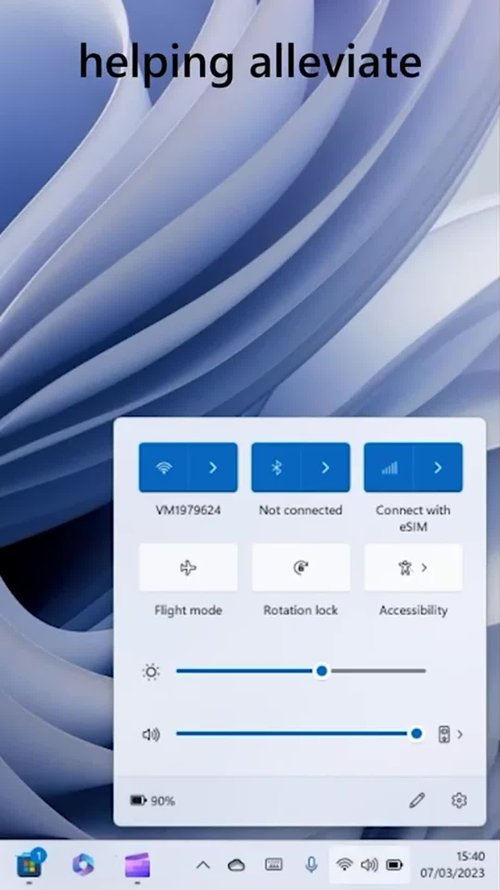
The Mono Audio feature in Windows 11 combines the left and right audio channels into a single channel, making it easier for users with hearing impairments to hear all audio through one speaker or earbud.

Narrator
The Narrator feature in Windows 11 is a built-in screen reader that reads text and describes on-screen elements aloud, aiding users who are blind or have low vision.

Focus Mode
The Focus Mode feature in Windows 11 helps users minimise distractions by silencing notifications and integrating with the Clock app to provide focus timers and music for enhanced productivity.
Dictate
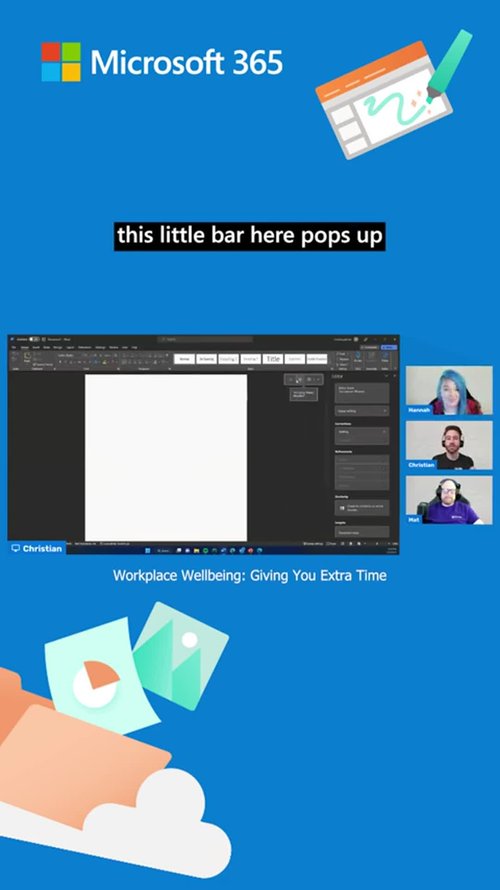
Dictate in Windows 11 allows users to control their PC and author text using only their voice, enhancing accessibility for those with limited mobility.
Word Transcribe
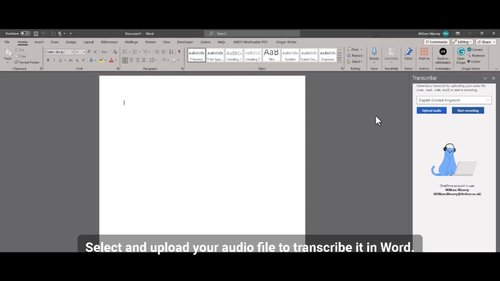
You can convert audio files into text in MS. Not only can you dictate your notes, letters and reports onto a digital recorder or Smart Phone, you can then use Word Transcriber to convert your words into text.